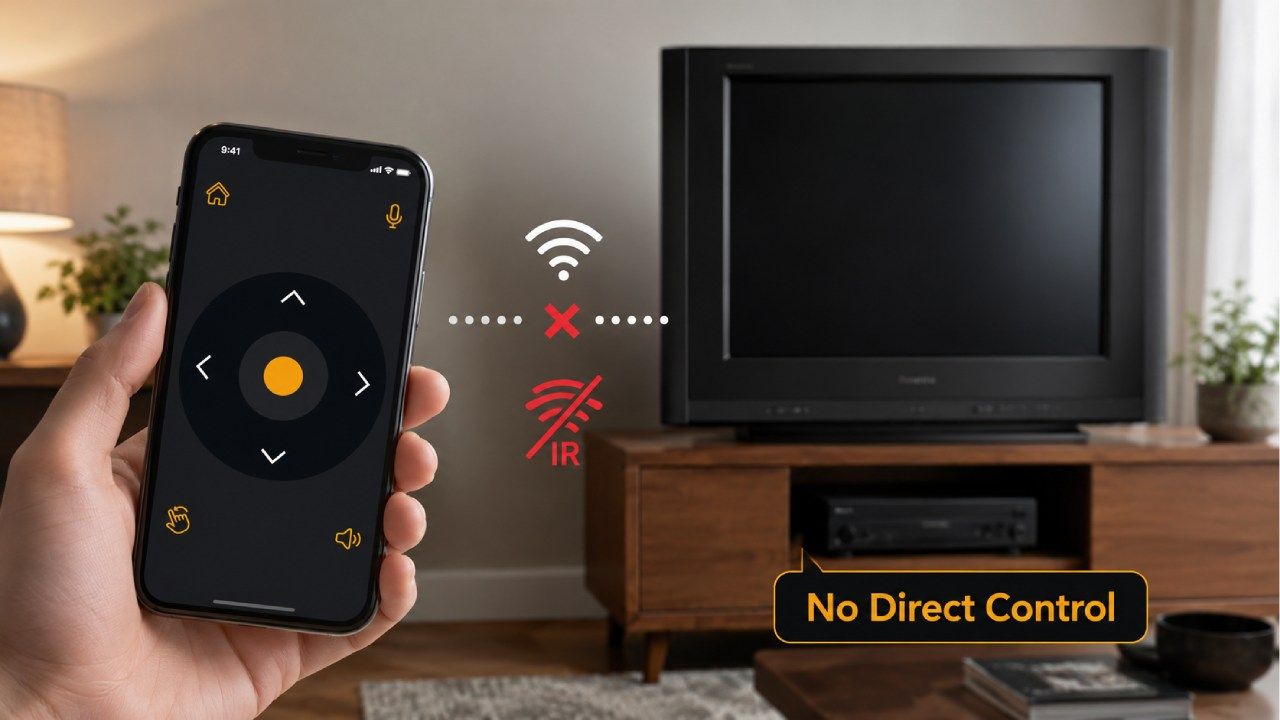
You download a TV remote app on your iPhone, point the phone at your older TV, tap the power button, and nothing happens. The app looks fine. Your iPhone works fine. The TV also works with its original remote. Still, your iPhone cannot control it.
This problem is common with older and non smart TVs. The reason is simple. Most non smart TVs need infrared signals, while iPhones do not have the hardware needed to send those signals.
In this guide, you will learn why iPhones cannot directly control most non smart TVs, how WiFi based TV remote apps work, where they fall short, and what solutions actually work. We will also explain how Universal TV Remote Control can help iPhone and Android users control supported TVs through WiFi, IR, or an IR bridge.
My Phone Has No IR Blaster - Can I Still Use Universal TV Remote Control App in 2026?
The Core Problem: iPhones Have No IR Blaster
iPhones cannot directly control most non smart TVs because no iPhone model has an IR blaster.
An IR blaster is a small infrared transmitter. It sends invisible light signals from a remote control to a TV. Traditional TV remotes use this technology. When you press the power button on a regular remote, the remote sends an infrared signal to the TV. The TV receives that signal and responds.
Most older and non smart TVs depend on infrared control. They do not connect to WiFi. They do not receive commands through apps. They simply wait for IR signals from a physical remote.
Some Android phones have included IR blasters over the years, especially models from brands such as Xiaomi and some older Samsung devices. These phones can send IR signals directly to a TV. iPhones do not have this part inside them.
That means an iPhone app alone cannot behave like a traditional infrared remote. The issue is not the quality of the app. It is a hardware limit.
What Is an IR Blaster and Why Does It Matter?
An IR blaster matters because it is the part that allows a phone to send the same kind of signal as a normal TV remote.
Infrared control is simple but very specific. It usually needs a clear line of sight between the remote and the TV. The signal travels from the remote to the TV in one direction. The TV receives it and follows the command.
This is why a regular remote works with older TVs even if there is no internet connection. The TV does not need WiFi or Bluetooth. It only needs to receive the IR signal.
For older TVs, this is the main control method. If your iPhone cannot send IR signals, the TV has nothing to receive from it.
Why Apple Never Added an IR Blaster to iPhones
Apple never added an IR blaster to iPhones because iPhones were built around WiFi, Bluetooth, and software based connections rather than traditional infrared control.
This matters because an app cannot add missing hardware. A TV remote app can use the features your phone already has, but it cannot create an infrared transmitter inside the phone.
So if your TV only accepts IR commands and your iPhone cannot send IR commands, direct control will not work.
Can an iPhone app control a non smart TV?
No iPhone model has an IR blaster. Without one, no iOS app can send the infrared signals that older non smart TVs require. It is a hardware limitation, not an app limitation.
IR Blaster vs WiFi TV Remote App - Which One Do You Actually Need?
How WiFi Based TV Remote Apps Work and Where They Fall Short
WiFi based TV remote apps work by sending commands from your phone to a smart TV through the same home network.
This method is different from infrared control. Instead of pointing your phone at the TV, your phone sends commands through WiFi. The TV receives those commands because it is also connected to the same network.
This works well with many smart TVs. Samsung, LG, Sony, Hisense, TCL, Philips, Panasonic, Vizio, Android TV, Google TV, and other modern smart TVs often support app based control through WiFi.
But this only works when the TV has smart features and network support. A non smart TV does not have the required network chip, software, or receiver to understand WiFi commands.
If your TV cannot connect to WiFi, your iPhone cannot control it through a normal WiFi remote app.
WiFi Remotes Only Work With Smart TVs
WiFi remotes only work with TVs that can connect to your home network.
The phone and TV must usually be on the same WiFi network. Once the app detects the TV, it can send control commands such as power, volume, navigation, input, and text entry depending on the TV model.
This is why an iPhone TV remote app can work well with a smart TV but fail with an older TV.
Non Smart TVs Cannot Receive WiFi Commands
Non smart TVs cannot receive WiFi commands because they do not have the hardware or software needed for network based control.
This is one of the most common misunderstandings. Many users think a modern app should work with any TV. But the TV also needs to support the connection method.
If the TV only understands infrared signals, a WiFi command from an iPhone will never reach it.
Bluetooth Is Usually Not the Answer Either
Bluetooth usually does not solve this problem because most TVs do not accept general remote commands from an iPhone through Bluetooth.
Some TVs, soundbars, and streaming devices use Bluetooth for specific accessories, but that does not mean an iPhone can control every TV through Bluetooth. For most older TVs, Bluetooth is not available at all.
Here is the simple way to understand it.
So What Can iPhone Users Do to Control Non Smart TVs?
iPhone users can control non smart TVs by using extra hardware such as a WiFi to IR bridge, or by using a compatible Android phone with an IR blaster instead.
There is no magic app that can make an iPhone send infrared signals on its own. But there are practical ways around the problem.
The best solution depends on what you already have. If you want to keep using your iPhone, an IR bridge is usually the right answer. If you have access to an Android phone with an IR blaster, direct IR control may be possible. If you want the simplest backup, a physical universal remote can also work.
Option 1: Use a WiFi to IR Bridge
A WiFi to IR bridge can help because it receives commands from your iPhone through WiFi and sends infrared signals to the TV.
Devices such as Broadlink RM4 Pro are made for this kind of setup. Your iPhone sends a command through an app. The bridge receives it over WiFi. Then the bridge sends the correct IR signal to the TV.
This gives iPhone users a way to control older TVs without needing an IR blaster inside the iPhone.
This option is useful if you want phone based control, smart home style convenience, and support for older TVs that only understand IR commands.
Option 2: Use Universal TV Remote Control With an IR Bridge
Universal TV Remote Control can work with iPhone users through WiFi based control for smart TVs and through IR bridge hardware for older TVs.
The iOS version is useful for WiFi enabled smart TVs from many supported brands. For older non smart TVs, you need an IR bridge because the iPhone itself cannot send infrared signals.
A simple setup looks like this.
- Download Universal TV Remote Control on your iPhone.
- Connect your IR bridge device to the same WiFi network.
- Select your TV brand and start controlling the TV through the bridge.
Universal TV Remote Control supports more than 700 TV brands and is used in more than 100 countries. It also includes keyboard input, D Pad navigation, voice control features, and a user friendly interface.
You can get the iOS version here:
https://apps.apple.com/us/app/universal-tv-remote-control/id1492122256
Option 3: Use an Android Phone With an IR Blaster
An Android phone with a built in IR blaster can control many non smart TVs directly.
This works because the Android phone can send infrared signals in the same way as a physical remote. Some Xiaomi phones and selected older Android models include this hardware.
Universal TV Remote Control on Android can use IR control where the phone hardware supports it. This makes Android more flexible for older TVs than iPhone.
You can get the Android version here:
https://play.google.com/store/apps/details?id=codematics.universal.tv.remote.control
This is a good option if you already have a compatible Android phone at home.
Option 4: Use a Physical Universal Remote as a Backup
A physical universal remote can still be a simple backup for older non smart TVs.
It does not need WiFi. It does not need an app. It does not need a phone. You program it for your TV brand, point it at the TV, and use it like a normal remote.
The downside is that it does not offer the convenience of a phone app. You do not get keyboard input, easy app navigation, voice features, or smart control options.
Still, for users who want a low cost and simple fallback, it can be useful.
Which TV Brands Are Supported by Universal TV Remote Control?
Universal TV Remote Control supports more than 700 TV brands, including many popular smart and traditional TV manufacturers.
Supported brands include Samsung, LG, Sony, Hisense, TCL, Philips, Panasonic, Sharp, Vizio, and many others. The app is designed for wide compatibility across different regions, TV types, and user needs.
It has more than 130 million downloads and users in more than 100 countries. This makes it a strong option for homes with more than one TV brand.
For iPhone users, the app works best with WiFi enabled smart TVs. For older non smart TVs, iPhone users need an IR bridge. For Android users with compatible IR hardware, the app can also control many older TVs through infrared.
Frequently Asked Questions
Can I use my iPhone as a TV remote without WiFi?
No. You cannot use an iPhone as a TV remote without WiFi unless you add extra hardware such as an IR bridge.
iPhones do not have an IR blaster, so they cannot send infrared signals directly to older TVs. If the TV is not connected to WiFi and there is no IR bridge, the iPhone has no direct way to control it.
Does any iPhone have an IR blaster?
No. No iPhone model has an IR blaster.
This means an iPhone cannot send infrared remote signals by itself. It can control supported smart TVs through WiFi, but it cannot directly control older TVs that only accept IR commands.
Which remote app works on iPhone for non smart TVs?
No iPhone app alone can directly control a non smart TV that only accepts infrared signals.
Universal TV Remote Control works on iPhone for WiFi enabled smart TVs. For older non smart TVs, it can be used with IR bridge hardware that converts WiFi commands into infrared signals.
Why does my TV remote app work on Android but not iPhone?
A TV remote app may work on Android but not iPhone because some Android phones have a built in IR blaster, while iPhones do not.
If the TV is older and only accepts infrared commands, an Android phone with IR hardware can send those signals directly. An iPhone cannot do that without an IR bridge.
What is an IR bridge and do I need one?
An IR bridge is a small device that connects to WiFi and sends infrared signals to your TV.
You need one if you want to control an older non smart TV with an iPhone. The iPhone sends the command through WiFi, and the bridge sends the infrared signal to the TV.
Does Universal TV Remote Control work on iPhone?
Yes. Universal TV Remote Control works on iPhone for WiFi enabled smart TVs from supported brands.
For older non smart TVs, iPhone users need an IR bridge device because the iPhone cannot send infrared signals by itself.
Why Your TV Remote App Is Not Working? (Fix All Problems)
The Bottom Line: Know Your TV, Know Your Phone
iPhones cannot directly control most non smart TVs because they do not have an IR blaster.
WiFi based remote apps only work when the TV supports WiFi control. That usually means the TV must be a smart TV connected to the same network as your iPhone.
If you want to control an older non smart TV with an iPhone, the best solution is to use an IR bridge with a remote app such as Universal TV Remote Control. If you use Android, a phone with an IR blaster may control many older TVs directly.
Before buying extra hardware, check whether your TV is smart or non smart, confirm what connection it supports, and then choose the right setup.
Download Universal TV Remote Control for iOS:
https://apps.apple.com/us/app/universal-tv-remote-control/id1492122256
Download Universal TV Remote Control for Android:
https://play.google.com/store/apps/details?id=codematics.universal.tv.remote.control