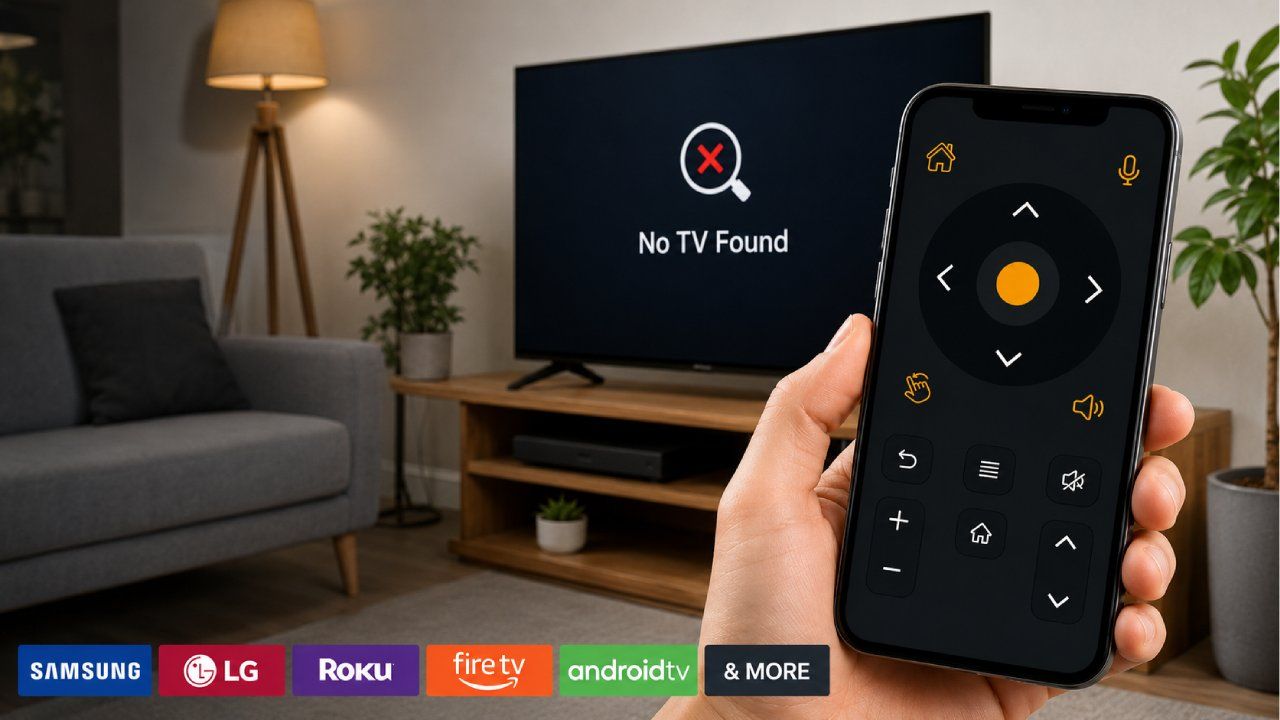
If your TV remote app shows the message “No TV Found,” it usually means your phone and TV are not on the same network, or the TV is not discoverable due to settings, permissions, or compatibility issues. This is one of the most common problems users face with smart TV remote apps across Samsung, LG, Roku, Fire TV, and Android TV devices.
Below is a complete, practical guide to identifying the real cause and fixing it step by step, without guesswork.
Why does my TV remote app say “No TV Found”?
Your TV remote app says “No TV Found” when your phone cannot detect your TV on the same network or the TV blocks discovery due to settings, connectivity issues, or disabled remote access features.
This error is not random—it usually comes from a small but critical mismatch between your phone and TV connection setup.
Is your phone and TV connected to the same WiFi network?
Your TV remote app shows “No TV Found” when your phone and TV are not on the same WiFi network or are connected to different bands (2.4GHz vs 5GHz).
This is the most common reason across Samsung, LG, Roku, Fire TV, and Android TV devices. Even if both devices are “connected to WiFi,” they must be on the same network name (SSID).
Fix:
Connect both TV and phone to the same WiFi name
Avoid guest networks
Restart router after changes
Prefer 2.4GHz for better discovery range
TV Remote App Keeps Disconnecting? 7 Real Fixes for WiFi and IR Signal Drops
Why is my Samsung TV not showing in the remote app?
Your Samsung TV is not showing in the remote app because SmartThings remote access or TV IP control is disabled or blocked.
Samsung TVs rely heavily on network discovery services, and if permissions or Smart Hub settings are disabled, the TV won’t appear.
Fix:
Enable Remote Access / IP Control in TV settings
Turn on SmartThings TV pairing mode
Restart both TV and phone
Update SmartThings app
Why does LG TV say “No TV Found” in the remote app?
Your LG TV shows “No TV Found” because LG ThinQ or LG TV Plus cannot detect the TV due to disabled LG Connect Apps or network isolation.
LG TVs are sensitive to router settings and often fail when AP isolation is enabled.
Fix:
Enable LG Connect Apps in network settings
Disable AP Isolation / Client Isolation in router
Reboot TV and phone
Re-add TV in LG ThinQ app
Why is Roku TV not detected by the remote app?
Your Roku TV is not detected because network discovery is disabled or Roku mobile control permissions are not active.
Roku requires explicit permission for mobile control features.
Fix:
Enable Network Access = Permissive
Turn on Control by Mobile Apps
Restart Roku device
Ensure Roku and phone are on same subnet
Why does Fire TV show “No Device Found”?
Your Fire TV shows “No Device Found” because ADB debugging or remote app permissions are not enabled or the device is not registered properly in Amazon account.
Fire TV devices rely on Amazon account syncing.
Fix:
Enable ADB Debugging (if required)
Allow Remote App Access
Sign in with same Amazon account
Restart Fire TV and router
Why does Android TV remote app fail to detect TV?
Your Android TV remote app fails to detect the TV because Google TV services or Chromecast built-in discovery is disabled or restricted.
Android TV uses Google Cast services, which must be active.
Fix:
Enable Chromecast built-in
Ensure Google TV services are updated
Clear cache of Google Home app
Reboot both devices
Is your WiFi blocking device discovery?
Your WiFi router may be blocking TV detection due to AP isolation, firewall rules, or dual-band segmentation.
Modern routers often isolate devices for security, which breaks TV remote apps.
Fix:
Disable AP Isolation / Client Isolation
Turn off strict firewall rules temporarily
Use same band (prefer 2.4GHz)
Avoid mesh node switching during setup
Are permissions missing in your TV remote app?
Your TV remote app shows “No TV Found” because the required permissions, such as location, local network, or Bluetooth, are disabled.
Most TV apps require these permissions to scan nearby devices.
Fix:
Enable Location Permission
Enable Local Network Access (iOS/Android)
Allow Bluetooth scanning (if supported)
Restart the app after granting permissions
Why is the Universal TV Remote the easiest fix?
The Universal TV Remote Control app is one of the most reliable solutions when your TV isn't detected by brand-specific apps.
Rather than relying on a single ecosystem, it supports a wide range of devices and connection methods.
Key features of Universal TV Remote Control:
130 Million Plus Downloads
700 Plus TV Brands Compatibility
Users in more than 100 Countries
Keyboard and D-Pad Navigation
Voice Control Features
User Friendly Interface
Supports both WiFi and IR connectivity
This makes it especially useful when:
Your TV brand app fails to detect the device
Network discovery is inconsistent
You switch between multiple TVs or brands
Your TV is older or partially supported
In many real-world cases, users resolve the “No TV Found” issue instantly by switching to a universal remote solution rather than struggling with brand-specific apps.
Advanced troubleshooting if nothing works
Restart router (full power cycle)
Factory reset TV network settings
Update TV firmware
Reinstall remote app
Reset phone network settings
Try hotspot pairing test
If your TV connects to a mobile hotspot but not home WiFi, your router is the problem—not the TV.
Conclusion
The “No TV Found” error is almost always caused by network mismatch, disabled discovery settings, or permission issues—not hardware failure. Whether you are using Samsung, LG, Roku, Fire TV, or Android TV, the solution usually comes down to proper WiFi alignment and enabling device visibility settings.
If brand-specific apps still fail, switching to a Universal TV Remote Control app can immediately resolve compatibility issues and provide a stable alternative with wide device support.
Universal TV Remote Control App Security: Can Someone Hack Your TV?
FAQs
1. Why does my TV remote app only work sometimes and show “No TV Found” later?
This happens when your phone switches between WiFi bands (2.4GHz/5GHz) or connects to a different access point in a mesh network, breaking device discovery.
2. Can VPN or mobile hotspot cause “No TV Found” error?
Yes, VPNs and hotspots can isolate devices or change network routing, preventing your phone from detecting the TV on local network.
3. Why does restarting TV fix the remote app issue temporarily?
Restarting refreshes the TV’s network services and redistributes its IP address, allowing the app to rediscover it temporarily.
4. Does Bluetooth help in TV remote app detection?
Some apps use Bluetooth for initial pairing, but most smart TVs rely on WiFi-based discovery, so Bluetooth alone is not enough.
5. Is Universal TV Remote safe to use with all TVs?
Yes, Universal TV Remote is safe and widely used, supporting IR and WiFi control across 700+ brands, making it a reliable fallback when official apps fail.