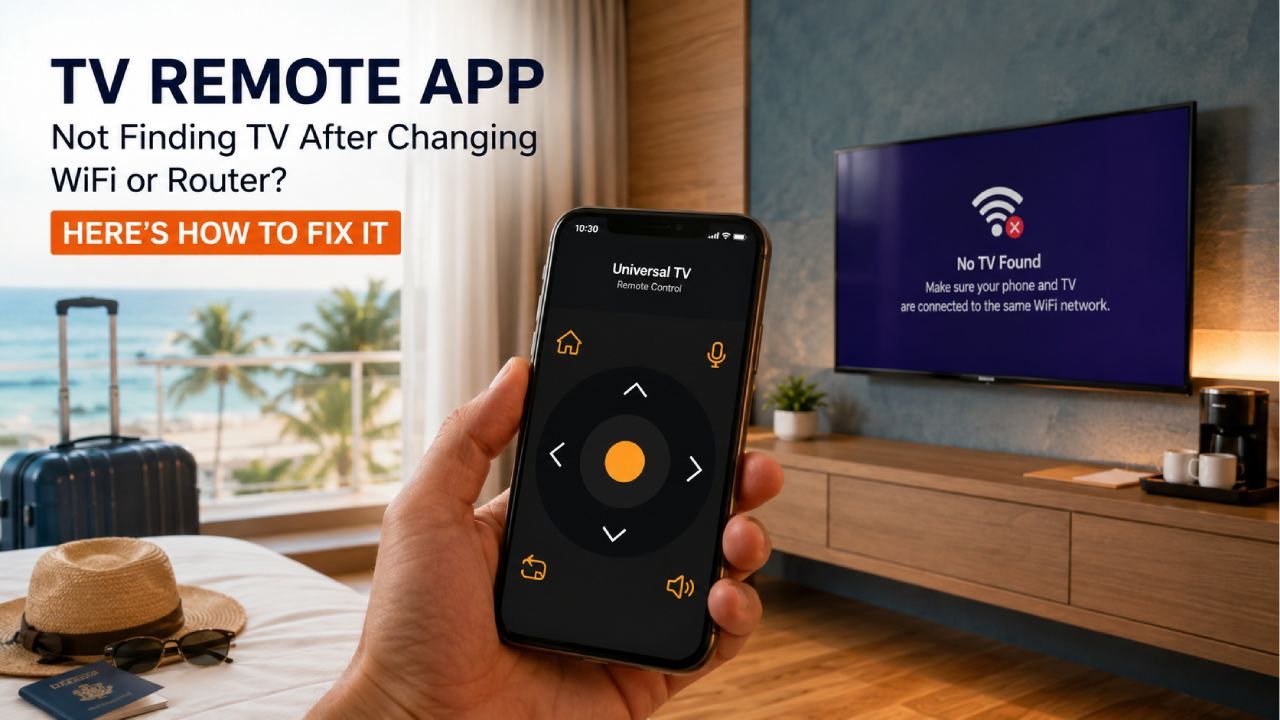
Changing your WiFi password or replacing your router can cause your TV remote app to stop finding your TV because the connection between your phone and TV is no longer valid. The good news is that this problem is usually easy to fix without resetting your TV or buying a new remote.
Many people assume the TV or remote app is broken after changing their home network. In reality, smart TVs remember the previous network settings, while mobile remote apps depend on both devices being connected to the same local network. Once that connection changes, the app can no longer discover the TV.
This guide explains why it happens, how to reconnect your TV, and what to do if your TV still does not appear. You will also learn how to use Universal TV Remote Control to reconnect quickly and control your TV again.
Why Does a TV Remote App Stop Finding Your TV After Changing WiFi?
A TV remote app stops finding your TV because your phone and TV are no longer communicating on the same local network.
When you change your WiFi password or install a new router, your TV may remain disconnected until it joins the new network. Even if your TV reconnects automatically, your phone might still be connected to another network, such as mobile data, a guest network, or a different WiFi band.
Other common reasons include:
Your TV is still trying to connect using the old password.
Your phone is connected to a different WiFi network.
The router assigned a new local IP address to the TV.
The TV remote app has stored outdated connection information.
Network isolation settings prevent devices from seeing each other.
Smart TV Connected but Volume/Power Not Working? 2026 Fix Guide
Fortunately, these issues can usually be fixed within a few minutes.
Step 1: Make Sure Your TV Is Connected to the New WiFi
Your TV must be connected to the new wireless network before any remote app can detect it.
Open your TV's network settings and verify that it is connected to your current WiFi. If it still shows the previous network or reports a connection error, forget the old network and connect again using the new password.
Once connected, test the internet by opening a streaming app or checking for software updates.
If your TV cannot access the internet, solve that issue first before troubleshooting the remote app.
Step 2: Connect Your Phone to the Same WiFi Network
Your phone must use the exact same WiFi network as your TV.
Many homes have separate 2.4 GHz and 5 GHz networks with different names. Some also have guest networks that isolate connected devices.
Check these points:
Turn off mobile data temporarily.
Connect to your main home WiFi.
Avoid guest WiFi.
Confirm both devices are connected to the same network name.
Even if both devices have internet access, they cannot communicate if they are on different networks.
Step 3: Restart Your TV, Phone, and Router
Restarting your devices refreshes network connections and often restores TV discovery.
Follow this order:
Turn off your TV and unplug it for one minute.
Restart your WiFi router.
Restart your smartphone.
Turn your TV back on.
Open your remote app and search again.
This simple process clears temporary network issues that frequently appear after changing router settings.
Step 4: Refresh the TV Search in Your Remote App
Refreshing the device search allows the app to discover your TV again.
Close the app completely and reopen it instead of leaving it running in the background. Then perform a new device scan.
If your app offers an option to remove previously connected TVs, delete the old connection before scanning again.
This forces the app to look for your TV as a new device instead of trying to connect using outdated information.
Step 5: Check TV Remote Permissions
TV remote apps require permission to access your local network.
On Android, ensure the app has permission to access nearby devices and your local network where required.
On iPhone, make sure Local Network permission is enabled. Without this permission, iOS blocks the app from discovering compatible smart TVs.
Also verify that WiFi access is enabled for the app.
Step 6: Disable VPN or Network Isolation
VPN services and router isolation features can prevent your phone from detecting your TV.
If you use a VPN, disconnect it temporarily and search again.
Some routers include settings such as:
AP Isolation
Client Isolation
Wireless Isolation
Guest Isolation
When enabled, these features stop wireless devices from communicating with each other even though both have internet access.
Disable these settings if you want your phone to control your TV.
Step 7: Update Your TV and Remote App
Outdated software can cause device discovery problems after network changes.
Check for updates on:
Your smart TV
Your remote app
Your phone operating system
Keeping everything updated improves compatibility and fixes known connection issues.
Why Your TV Remote App Is Not Working ? (Fix All Problems)
What If Your TV Still Does Not Appear?
If your TV still does not appear, the problem is usually related to compatibility, network settings, or the TV itself.
Try these additional solutions:
Restart the TV again after reconnecting WiFi.
Remove saved devices inside the app.
Check whether your TV supports network remote control.
Enable remote control settings on the TV if available.
Try connecting with another smartphone.
Reset your TV's network settings if necessary.
If none of these steps work, test another remote application to determine whether the issue is with the app or the TV.
Use Universal TV Remote Control for Easier TV Connection
Universal TV Remote Control by Codematics makes reconnecting to your TV simple after changing your WiFi network.
The app automatically searches for compatible TVs connected to your current network, helping you reconnect without complicated setup steps.
Key features include:
More than 130 million downloads worldwide
Compatible with more than 700 TV brands
Trusted by users in over 100 countries
Supports both WiFi and IR connectivity
Voice control support
Keyboard for faster text entry
D Pad navigation for smooth menu control
Clean and user friendly interface
Whether you own a Samsung, LG, Sony, TCL, Hisense, Philips, Roku TV, Android TV, Fire TV, or many other supported models, the app is designed to provide a convenient replacement for your physical remote.
Download the app here:
Android: https://play.google.com/store/apps/details?id=codematics.universal.tv.remote.control
iPhone: https://apps.apple.com/us/app/universal-tv-remote-control/id1492122256
How to Prevent This Problem in the Future
You can avoid connection issues after changing your router by reconnecting both devices correctly.
Keep these tips in mind:
Connect your TV immediately after changing your WiFi password.
Use the same WiFi network for both your TV and smartphone.
Avoid guest networks for smart home devices.
Restart devices after changing router settings.
Keep your TV software and remote app updated.
Save your WiFi password in a secure place to simplify future reconnections.
Following these simple practices makes reconnecting much faster whenever your home network changes.
Final Thoughts
A TV remote app usually stops finding your TV after changing your WiFi password or router because the original network connection no longer exists. In most cases, reconnecting both devices to the same WiFi, restarting your equipment, refreshing the app, and checking network permissions solve the problem within minutes.
If you want an easy way to reconnect and control your television, Universal TV Remote Control offers broad compatibility, simple setup, and reliable performance across hundreds of TV brands using both WiFi and IR connectivity.
Frequently Asked Questions
Why did my TV remote app stop working after changing my WiFi password?
Your TV remote app stopped working because your TV and phone are no longer connected to the same WiFi network or the app is still using the previous network information.
Does my phone and TV need the same WiFi network?
Yes. Both devices must be connected to the same local WiFi network for most smart TV remote apps to discover and control the TV.
Why can my TV access the internet but my remote app cannot find it?
Your TV may be online, but your phone could be connected to a different network, using a VPN, or blocked by router isolation settings.
Can changing my router affect my TV remote app?
Yes. A new router often assigns different network addresses and requires both your TV and phone to reconnect before the app can discover the TV again.
Can Universal TV Remote Control work with both WiFi and IR?
Yes. Universal TV Remote Control supports both WiFi and IR connectivity, making it compatible with a wide range of smart TVs and traditional televisions.