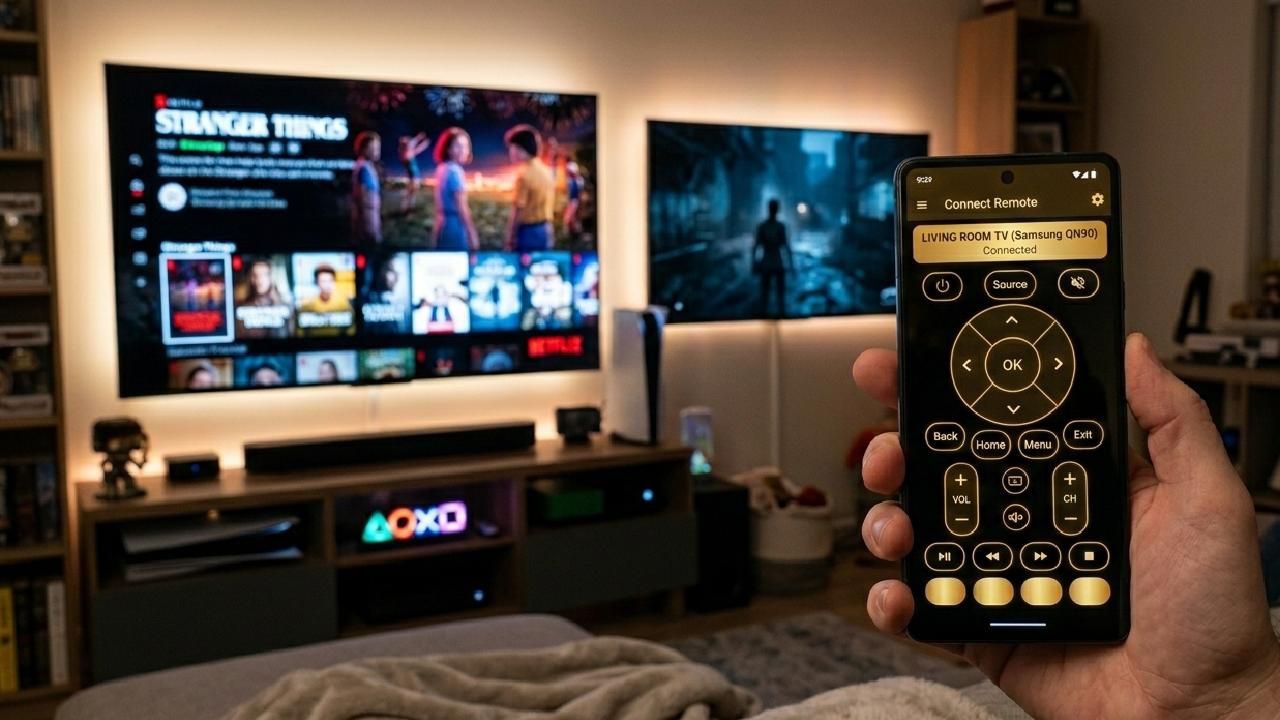
If the buttons in your Universal TV Remote Control app don’t respond. The issue is usually caused by connectivity problems, app glitches, outdated software, or device settings. Each of these problems has an easy fix; you just need to implement it accordingly.
Below, we explain the 6 common reasons and provide actionable solutions to restore full button functionality.
1. Connectivity Issues Between Your App and TV
If your remote app buttons aren’t working, the most common cause is a weak or interrupted connection between your phone and the TV.
Quick Fix: Ensure your smartphone and TV are on the same Wi-Fi network or that the infrared/Bluetooth connection is active. Restart both devices and try reconnecting. For IR-based connections, make sure your phone’s IR blaster is pointed directly at the TV sensor, with no obstacles between them.
2. The App Needs an Update
If your universal TV remote app buttons stop responding, outdated software may be causing compatibility issues.
Quick Fix: Open the Google Play Store and check for Universal TV Remote Control updates. Updating to the latest version can resolve bugs, improve stability, and restore full button functionality.
3. Software Glitches or App Cache Problems
If the app buttons are lagging or unresponsive, a corrupted cache or a temporary glitch could be the culprit.
Quick Fix: Go to your phone’s settings, find the app, and clear the cache. Restart the app afterward. If the issue persists, force-stop the app or reinstall it. This refreshes the app and often restores button responsiveness.
4. Incorrect TV or Device Selection
If certain buttons don’t work, it may be because the app is connected to the wrong device or TV model.
Quick Fix: Open the app and confirm the correct TV model is selected. Use the app's auto-search function to find compatible devices automatically. Selecting the right device ensures all buttons, including volume, power, and input, work correctly.
5. Interference From Other Devices or Apps
If your app buttons act unpredictably, interference from other Wi-Fi devices, Bluetooth devices, or apps running in the background may be affecting performance.
Quick Fix: Close other apps and move any electronics that could interfere with your TV or phone away from them. Temporarily disconnect nearby Bluetooth devices, then test the app.
6. Phone or TV Hardware Limitations
If some app buttons still don’t respond after troubleshooting, your phone or TV hardware may not fully support all app features.
Quick Fix: Check the app’s device compatibility list on the Google Play Store page. For IR-based functions, ensure your phone has an IR blaster. For Bluetooth features, confirm your TV supports Bluetooth commands. Some advanced features may not work on older TVs.
Conclusion
Most universal TV remote app button issues are caused by connectivity, outdated software, glitches, or incorrect device selection. These issues can be quickly resolved at home by following the above-mentioned fixes. You can restore full functionality and enjoy a seamless TV control experience. Regularly updating the app, keeping devices compatible, and maintaining clear communication between your phone and TV will prevent most future problems.
You may like reading the following topics,
Why Is Your TV Remote App Not Working? (Fix All Problems)
How 125 Million+ People in 100+ Countries Trust This Universal TV Remote App?