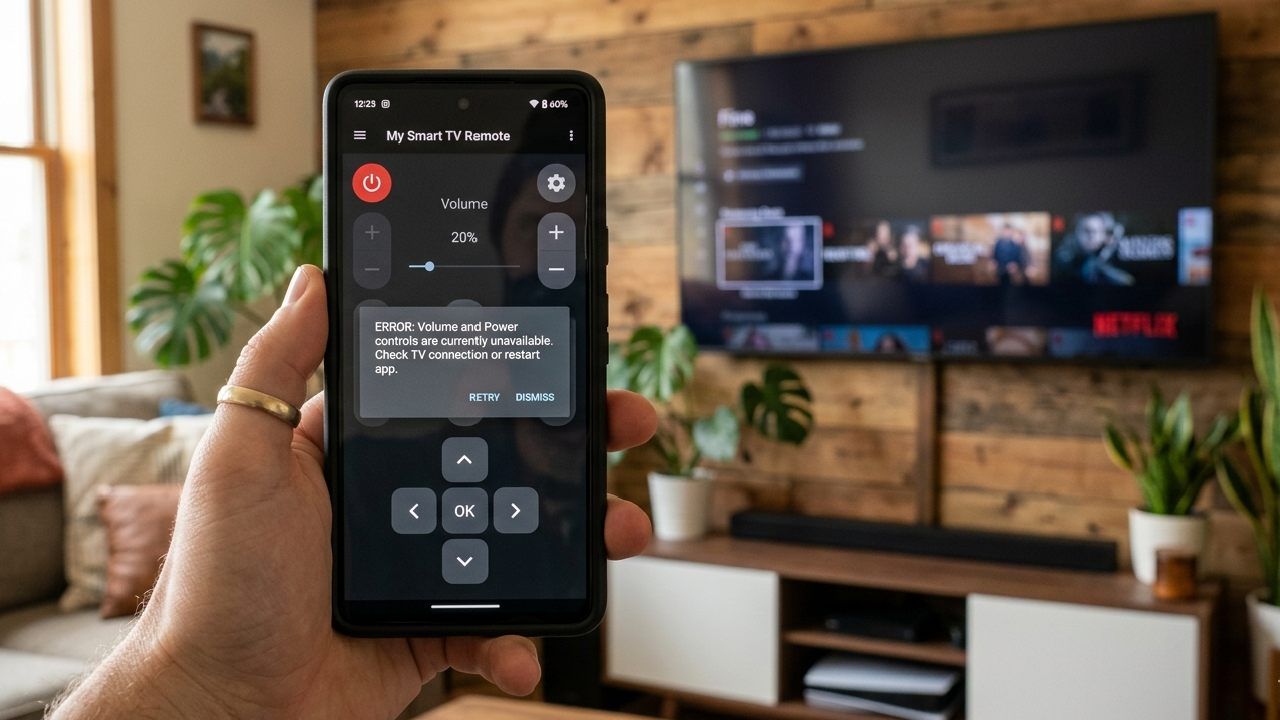
If your Smart TV is showing “connected” in your remote app but volume and power buttons are not working, the issue is almost never your phone. In most cases, your TV is connected only partially, meaning the app can “see” the TV but cannot control system-level functions like power, volume, or input.
The good news is: this is a very common Smart TV remote app issue, and it can usually be fixed in a few minutes once you understand the real cause.
In this guide, you’ll learn exactly why this happens and how to fix it step-by-step. We’ll also show how a reliable solution like the Universal TV Remote Control app by Codematics Inc. solves these issues more consistently across 700+ TV brands.
Read Also: Best Free TV Remote Mobile Application - Control TV From Your Smartphone
Why Volume and Power Stop Working Even When Connected?
This happens because your phone is connected to the TV over WiFi, but the control permissions or protocol layer is not fully established.
In simple terms:
Your app is “linked” to the TV, but not fully “authorized” to control all functions.
This usually occurs due to one of these reasons:
- The TV and phone are not on the same network layer
- The TV blocks system-level commands (power/volume)
- The app is connected in “limited mode”
- The pairing session is incomplete or expired
- TV OS restrictions (Samsung Tizen, LG webOS, Android TV differences)
Let’s break it down properly.
Reason #1: Partial Connection
Many Smart TV apps show “Connected” as soon as they detect the TV on WiFi. But this does not always mean full control access is granted.
There are actually two connection levels:
- Discovery Connection → TV is found on network
- Control Connection → Full permission for commands like volume, power, input
If only discovery is active:
- You can see the TV in the app
- But volume/power buttons won’t respond
Fix:
- Disconnect the TV in the app
- Restart both TV and phone
- Reconnect and allow all permissions
- Make sure you select the correct TV model
Reason #2: Different WiFi Bands
Smart TVs often behave differently depending on WiFi band.
If:
- Phone is on 5GHz
- TV is on 2.4GHz (or vice versa)
- Then the app may “connect” but fail to send control commands properly.
Fix:
- Connect both TV and phone to the same WiFi band (preferably 2.4GHz)
- Avoid guest networks or isolated WiFi connections
Reason #3: TV Blocking System-Level Commands
Some Smart TVs (especially Samsung and LG models) have built-in security layers.
These can block:
- Power ON/OFF commands
- Volume control signals
- Input/source switching
This is especially common after firmware updates.
Fix:
- Go to TV settings → Network → Device Access
- Enable “Allow external device control” (wording may vary)
- Restart TV after enabling
Reason #4: App Is Connected in Limited Mode
Some remote apps only establish basic control mode first, which supports navigation but not full system control.
That’s why:
- D-Pad works
- But volume/power does not
Fix:
- Re-pair the device completely
- Accept all prompts (not just basic connection)
- Ensure full control mode is selected
Reason #5: TV OS Differences (Very Important)
Not all Smart TVs respond the same way.
Here’s how they differ:
Android TV → usually full compatibility
- Samsung Tizen OS → requires proper permission handshake
- LG webOS → strict pairing process
- Roku TV → limited system command access in some cases
So even if the app is connected, power/volume commands depend on OS support and pairing quality.
How to Use the Keyboard & D-Pad in Universal TV Remote Control App
How to Fix It Permanently (Step-by-Step)
Follow this proven method:
Step 1: Restart Everything
Turn off TV completely
Restart phone
Reboot WiFi router
Step 2: Reconnect Properly
- Open your remote app
- Select TV again
- Wait for full pairing confirmation (not just detection)
Step 3: Allow Permissions
- Accept all prompts on TV screen
- Enable device access if asked
Step 4: Ensure Same Network
- Same WiFi name
- Same band (2.4GHz recommended)
Step 5: Test Controls in Order
- First navigation (D-Pad)
- Then volume
- Then power
Why Universal TV Remote Control App Works Better
Many users face this issue because not all apps maintain stable control sessions across different TV brands.
The Universal TV Remote Control app by Codematics Inc. is designed specifically to reduce these failures.
Key Features That Solve This Problem:
Stable Smart TV Connectivity
- The app maintains stronger control sessions once paired, reducing “connected but not working” issues.
Supports 700+ TV Brands
Works across:
- Samsung
- LG
- Sony
- TCL
- Hisense
- Android TVs and more
Smart Auto-Detection
- Helps correctly identify your TV, reducing partial connection issues.
Full Control Mode
Includes:
- Volume control
- Power buttons
- Input/source switching
- Navigation pad
- Keyboard input
Voice Control & Smart Input
- Even when physical buttons fail, users can still control TV efficiently.
Why This Problem Happens So Often
Most users assume:
“If it says connected, everything should work”
But Smart TVs don’t work like Bluetooth devices. They require:
- Network discovery
- Permission handshake
- OS-level authorization
- Stable WiFi communication layer
If any one of these fails, volume and power commands break first because they are system-level controls.
Final Fix Summary
If your Smart TV is connected but volume/power is not working:
- It is NOT a phone issue
- It is NOT always an app issue
- It is usually a partial connection or permission issue
The fastest solution:
- Reconnect TV properly
- Ensure same WiFi network
- Enable TV control permissions
- Use a stable remote app like Universal TV Remote Control by Codematics Inc.
Final Note
If you frequently face Smart TV control issues, switching to a more stable and widely compatible app is the most reliable long-term fix.
The Universal TV Remote Control app is built for exactly this problem, helping users smoothly control Smart TVs without worrying about missing buttons, broken connections, or brand limitations.
FAQs
1. Why does my Smart TV show connected but volume not work?
A: This usually happens due to partial connection or missing permissions. The app detects the TV but cannot access full control features like volume.
2. Why is the power button not working on my TV remote app?
A: Power control requires full system-level access. If pairing is incomplete or blocked by TV settings, the power button may not respond.
3. How do I fix Smart TV remote app connection issues?
A: Reconnect both devices on the same WiFi, restart TV and phone, and ensure you allow all permissions during pairing for full control.
4. Can WiFi issues affect volume and power control?A:
A: Yes, if devices are on different bands (2.4GHz vs 5GHz) or guest networks, Smart TV commands like volume and power may fail.
5. Which app works best for Smart TV remote control?
A: The Universal TV Remote Control app by Codematics Inc. supports 700+ TV brands and offers stable control for volume, power, and navigation.