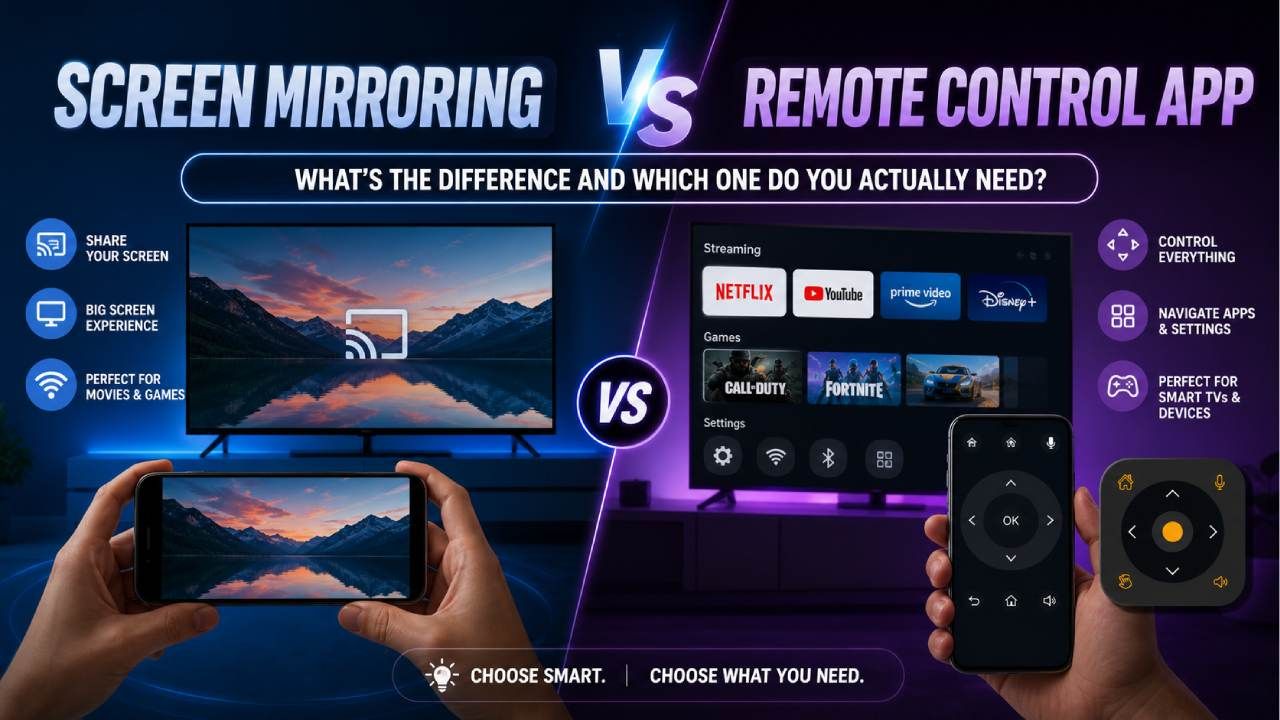
When connecting your phone to your TV, you’ve probably run into the same confusion. Do you need screen mirroring or a remote control app? Both these options seem useful, and claim to connect your phone to your TV. But they serve completely different purposes in reality.
Mirroring helps you show content. The TV Remote app helps you control your TV. Choosing the wrong one can get you stuck halfway through setup.
In this guide, you’ll get a clear answer to what each one actually does, when to use them, and which one you really need based on your situation.
What does Screen Mirroring actually do?
Screen mirroring duplicates your phone’s screen onto your TV. Everything you see on the phone appears in real time on the TV.
Open a video on your phone, and it plays on the big screen. Scroll through photos, and they show up instantly. Even games or presentations can be mirrored directly.
This works through technologies like Chromecast, AirPlay, Miracast, and Samsung Smart View. Most modern smart TVs support at least one of these. Typically, both your phone and TV need to be connected to the same WiFi network, and you start mirroring through a Cast button or your phone’s quick settings.
People usually use screen mirroring for:
- Watching videos from their phone on a larger screen
- Sharing photos with family
- Presenting slides or documents
- Playing mobile games on TV
The actual truth: Screen Mirroring does not control your TV.
Your phone is doing all the work. The TV is just acting like a second display, plus a bigger one. You’re not changing channels, opening TV apps, or adjusting system settings. You’re simply projecting your phone onto a bigger screen.
What does a TV Remote actually do?
A TV remote control app is a replacement for your physical remote. It lets you operate the TV itself the same way you do with a physical remote.
You can:
- Turn the TV on/off
- Change channels
- Adjust volume
- Navigate menus with a D-pad
- Open apps like Netflix, Amazon Prime, or YouTube
- Type using your phone’s keyboard
- Use voice search on supported TVs
App Connecting Methods:
WiFi Mode: This mode works with smart TVs connected to the same network as your phone.
IR blaster Mode: This mode works with older or non-smart TVs using your phone’s infrared sensor. No WiFi required.
A notable example here is the Universal TV Remote Control app. It has over 130 million downloads, supports more than 700 TV brands, and works in over 100 countries. It combines WiFi and IR functionality, so it works with both smart and non-smart TVs.
It also includes features that solve real user frustrations:
- Built-in keyboard for faster typing
- Voice control when buttons feel slow
- D-pad navigation for precise control
- App launcher for quick access
If your goal is to operate your TV, this is the tool you need.
Which one do you actually need? Use this to decide
The easiest way to choose is to match the tool to your goal.
Use screen mirroring:
- For watching videos from your phone on a bigger screen
- Watching shows on YouTube, TikTok, or a photo gallery
- For presenting your slides or documents
- Playing mobile games on your TV
Use a remote control app:
- When a physical remote is lost or broken
- Changing channels or adjusting volume
- Opening apps directly on your TV
- When you own a non-smart TV
- You want to type faster using your phone keyboard
- You want voice search and navigation features
Do remember that screen mirroring is not a replacement for a remote. It will only display the content without any control. You won't be able to change channels or navigate menus.
Download a remote app, such as Universal TV Remote Control. It will allow you full control over the functionalities.
Can you use a remote control app and screen mirroring at the same time?
Yes, you can, and that’s actually the best setup.
The two functions don’t interfere with each other because they do different things. One controls the TV, the other sends content to it.
For example, you could use a remote control app to open YouTube on your TV. Then, you can mirror or cast a specific video from your phone.
Instead of choosing one over the other, think of them as complementary tools that work better together.
The remote control app trusted by 130 million users worldwide
If you need full TV control, a reliable remote control app is essential.
The Universal TV Remote Control app solves the exact problems most users face. It supports over 700 TV brands and operates in more than 100 countries, so compatibility is rarely an issue.
Its biggest advantage is dual connectivity. It works with smart TVs over WiFi and with non-smart TVs using an IR blaster. Most apps support only one of these, not both.
It also focuses on usability:
- Voice control removes the need for manual navigation
- Keyboard input makes searching and typing passwords faster
- D-pad navigation mirrors a real remote experience
- Built-in app launcher simplifies access to streaming platforms
Instead of adding complexity, it replaces the missing piece that most people struggle with.
Final Remarks
Screen mirroring lets you share your phone screen on your TV. A remote control app lets you control your TV using your phone.
If you’re trying to replace a lost remote. A remote control app is the right solution.
If you're trying to share the mobile screen. Screen mirroring is the best option.
Download the universal TV remote app for Android and iOS and turn your phone into a fully functional remote in seconds.
FAQs
Is screen mirroring the same as using a TV remote app?
No, Screen mirroring displays your phone’s screen on the TV, while a TV remote app controls the TV’s functions, such as volume, channels, and apps.
Can I control my TV with my phone without screen mirroring?
Yes, you can use a TV remote control app to operate your TV directly. It works through WiFi for smart TVs or an IR blaster for older TVs, without needing screen mirroring at all.
Does a TV remote app work on non-smart TVs?
Yes, if your phone has an IR blaster. This allows the app to send signals just like a physical remote, making it compatible with older, non-smart TVs.
Why is my screen mirroring working, but I still can't change channels on my TV?
Because screen mirroring only displays content from your phone. It does not control the TV itself. To change channels or settings, you need a remote control app or a physical remote.
Which is better, screen mirroring or a universal remote app?
The better option depends on your requirements. Screen mirroring is best for sharing content. The universal remote control app is the best option to control your TV.