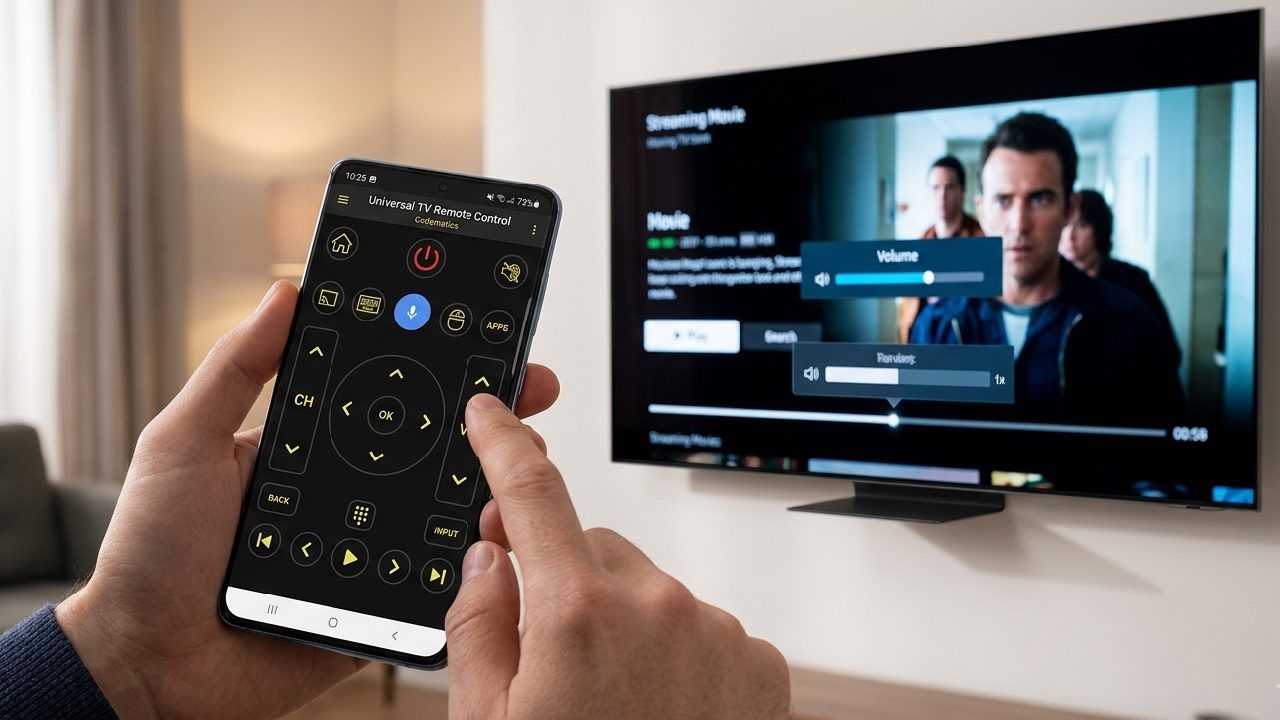
You can control your Samsung Neo QLED or OLED TV directly from your phone, and it takes less than two minutes to set up. No remote, no pairing codes, no extra hardware. If your SolarCell remote is lost under the couch or you just unboxed a new TV, your phone already does everything the remote can do, and more.
Samsung’s 2026 TVs run Tizen OS, which connects smoothly with universal remote apps over WiFi. Once connected, your phone becomes a full remote with volume, navigation, apps, and input control all in one place. If you are exploring options, you can also check this guide on the best TV remote mobile apps to find the right one for your setup.
IR Blaster vs WiFi TV Remote App - Which One Do You Actually Need?
Why Samsung's 2026 TVs Are Perfect for Phone Control
Samsung’s 2026 Neo QLED and OLED lineup all use Tizen OS with built-in WiFi connectivity. That means they are ready for phone control without any extra setup or accessories. The physical SolarCell and One Remote are solid, but they only work within Samsung’s ecosystem.
A universal remote app goes further. It works across hundreds of TV brands, so if you have more than one TV at home, you don’t need multiple remotes. One app handles everything from your bedroom TV to your living room setup. If you often experience connection issues, this troubleshooting guide on TV remote app disconnect issues can help you avoid common mistakes.
What You'll Need Before You Start
You only need three things: your Samsung TV and phone connected to the same WiFi network, the Universal TV Remote Control app installed on your phone, and your TV powered on. That’s it. No codes, no technical setup, and no waiting. Most people are connected and ready in under two minutes.
How to Set Up the App With Your Samsung Neo QLED or OLED
- Download the Universal TV Remote Control app from your app store and install it on your phone.
- Open the app and choose Samsung from the list of supported brands.
- Make sure your phone and TV are connected to the same WiFi network. This step matters most.
- The app will automatically scan and detect your TV. Tap on your TV name when it appears.
- Once connected, you are ready to use your phone as a remote.
After setup, your screen shows a full remote layout. You get volume buttons, channel controls, a D Pad for navigation, Smart Hub access, input switching, and playback controls. It feels like using a real Samsung remote, but faster and easier with touch.
Every Feature You Can Control - And How
Basic Playback and Volume
You can turn the TV on or off, adjust volume, mute sound, and change channels instantly. The app responds just like the physical remote. Long-pressing the volume button smoothly continues to raise or lower the sound, making quick adjustments easy.
D-Pad Navigation Through Smart Hub
The D Pad in the app lets you navigate Samsung’s Smart Hub without delay. You can scroll through apps, open streaming services, and browse menus exactly like you would with a physical remote. Apps like Netflix, YouTube, and Prime Video are easy to access and control without switching devices.
Voice Control
The app includes built-in voice control for hands-free use. You can search for shows, open apps, or navigate menus just by speaking. It works well for quick searches or when you don’t want to type using the on-screen keyboard.
Input Switching
Switching between HDMI inputs is simple. Whether you are moving from a gaming console to a streaming device or a sound system, it takes one tap. No digging through menus or guessing input names.
Controlling Multiple Samsung TVs
If you have more than one Samsung TV at home, the app manages them all in one place. You can switch between devices without reconnecting each time. This is useful if you have a Neo QLED in the living room and an OLED in the bedroom. Everything stays organized in one interface.
Does This Work on the Newest 2026 Samsung Models?
Yes, it works on all Samsung Smart TVs released in 2026. This includes Neo QLED models like the QN85, QN90, and QN900 series, OLED models such as S90F and S95H, and even Frame TVs. All of these run Tizen OS, which fully supports WiFi-based remote apps.
If you recently bought a QN90F or S95H, your TV is already compatible. There is nothing extra you need to enable beyond connecting to WiFi.
My Phone Has No IR Blaster - Can I Still Use Universal TV Remote Control App in 2026?
Troubleshooting: App Not Finding Your Samsung TV?
If the app cannot find your TV, the fix is usually simple. First, make sure both your phone and TV are on the same WiFi network. If one is on 2.4 GHz and the other is on 5 GHz, they may not detect each other.
Next, restart the app and reopen it. This refreshes the device scan. If that does not work, check your TV settings and confirm that network-based remote control is allowed. Most TVs enable this by default, but it is worth checking once.
If problems continue, you can also review this detailed fix guide on TV remote apps disconnecting to solve deeper connectivity issues.
Dwnload Universal TV Remote Control App on Google Play Store and Apple Store.
FAQs
Q. Why does my Samsung TV connect but not respond to commands from the app?
A: This usually happens when the connection is established but delayed due to network instability. Check if your WiFi signal is weak or crowded. Restart your router and keep your phone closer to the TV. Also, close background apps on your phone to reduce response time.
Q. Can I turn on my Samsung TV if it is completely powered off?
A: Yes, in most cases. If your TV is connected to WiFi and has network standby enabled, the app can power it on. If it does not work, enable settings like “Power On with Mobile” or similar options in your TV’s network or general settings.
Q. Why is there a delay when using the D Pad on my phone?
A: A slight delay can occur if your network has high latency. This is common on busy WiFi networks. Switching to a less crowded band or moving closer to the router usually fixes the issue. High-end routers provide a smoother navigation experience.
Q. How do I fix the input switching not working from the app?
A: If input switching does not respond, check if your connected device is active. Some TVs only allow switching to inputs that are currently powered on. Turn on your console or streaming device first, then try switching again from the app.
Q. Is it safe to allow remote control access on a Samsung TV?
A: Yes, it is safe as long as your WiFi network is secure. Samsung TVs only allow control from devices connected to the same network. For extra safety, avoid connecting your TV to public or unsecured WiFi networks.
Final Thoughts
Samsung’s 2026 TVs are built for convenience, and your phone fits perfectly into that experience. Once connected, it becomes a faster and more flexible remote than the one in the box.
If you want a simple way to control everything from one place, try the Universal TV Remote Control app and explore how easy it is to manage your TV without ever reaching for a remote.