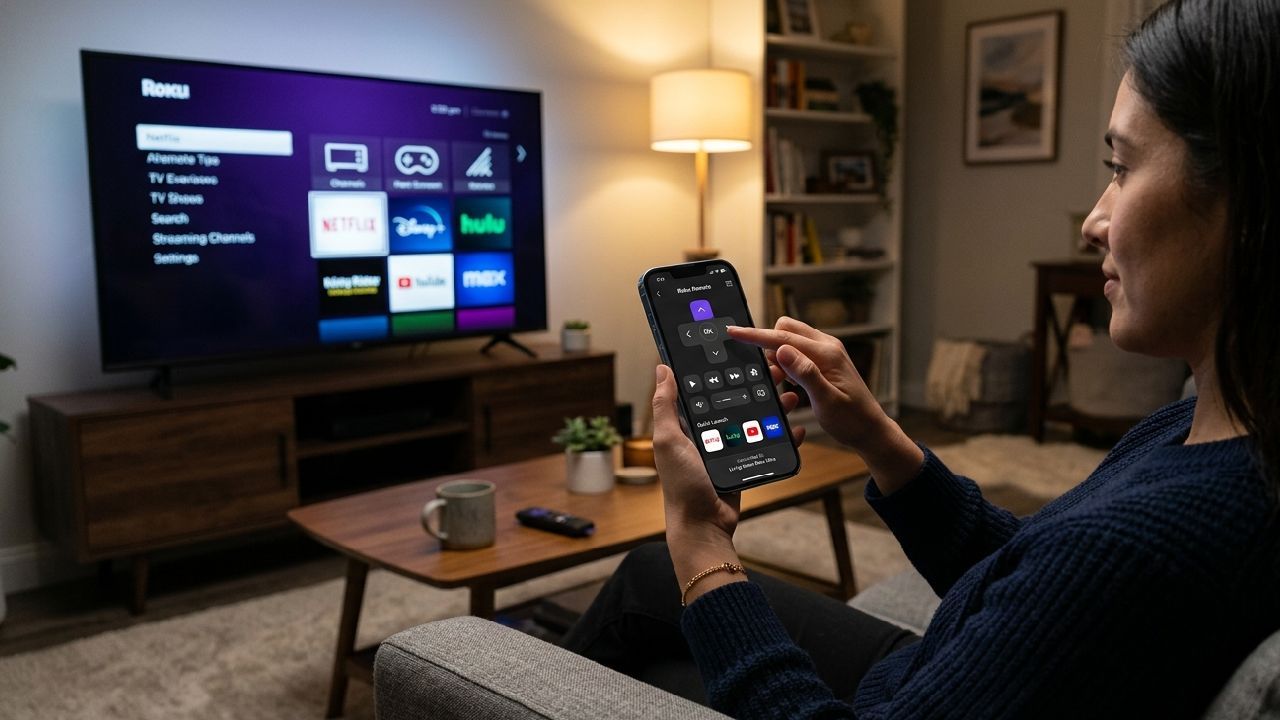
Roku TV apps usually stop opening due to system glitches, slow internet, outdated software, or cache issues inside the device. When this happens, users often face loading screens, app crashes, or complete freezing when selecting apps like Netflix, YouTube, or Prime Video. In most cases, the issue is not permanent and can be fixed with simple steps, especially when you have faster navigation tools, such as a mobile remote control app, to access settings and restart apps quickly.
When Roku apps fail to open, the biggest problem is not just the app itself but the delay in navigating the system using a physical remote. This is where a mobile-based remote solution like the Universal TV Remote Control app becomes extremely helpful, as it enables faster control, smoother navigation, and quicker troubleshooting.
Why Roku TV Apps Stop Opening or Freeze on Launch?
Roku TV apps stop opening because of a mix of software, network, and system-level issues. The most common reason is outdated firmware that causes apps to behave unpredictably. Roku systems depend heavily on regular updates, and missing updates can lead to app crashes or loading failures.
Another common cause is a corrupted app cache. Over time, apps store temporary data that helps them load faster. When this data becomes corrupted, the app may fail to open or freeze on startup. Internet instability is also a major factor. Even if WiFi is connected, weak signals or DNS issues can prevent apps from loading properly.
Sometimes, the issue comes from Roku servers themselves. If multiple apps are not opening at the same time, it may be a regional outage or server maintenance. Low device storage can also slow down the system, causing apps to become unresponsive.
Common Symptoms When Roku Apps Are Not Working Properly
When Roku apps stop working, users usually notice clear symptoms before the full failure happens. One of the most common signs is an app stuck on a loading screen that never progresses. In some cases, the app opens but immediately closes without any warning.
Another frequent issue is a black screen after selecting an app. Users also experience slow or delayed responses when navigating between menus. Remote clicks may not register properly inside apps, making navigation frustrating. Sometimes the TV shows error messages like “cannot start app” or “application failed to load.”
These symptoms usually point to deeper issues in system performance, internet stability, or app data corruption rather than a permanent hardware fault.
Readl Also: TV Remote App Keeps Disconnecting? 7 Real Fixes for WiFi and IR Signal Drops
Quick Fixes for Roku TV Apps Not Opening
Most Roku app issues can be resolved with simple troubleshooting steps. The first and easiest fix is restarting the Roku TV. A soft reboot clears temporary glitches and refreshes system memory.
Next, check your internet connection. Even if the WiFi icon shows connected, the signal might not be stable enough for apps to load. Restarting the router often solves this issue.
Updating the Roku software is another important step. Go to settings and check for system updates. Outdated software often causes compatibility issues with apps.
If a specific app is not working, removing and reinstalling it can fix corrupted files. Restarting the system also helps clear the cache and temporary data.
If multiple apps are not working, the issue is likely related to the network or Roku servers instead of individual apps.
Why Remote Control Issues Make Roku App Problems Worse?
When Roku apps are not opening properly, using a physical remote can make the situation even more frustrating. A delayed response from the remote makes it harder to navigate settings, restart apps, or perform troubleshooting steps.
Some Roku remotes also suffer from battery issues, pairing delays, or weak signal response. This slows down the entire recovery process. When apps are already stuck or freezing, even small navigation delays make troubleshooting difficult.
This is where mobile-based control becomes extremely useful. A smartphone remote app removes many of these limitations and gives faster access to the TV system.
How Mobile Remote Control Helps Fix Roku TV App Issues Faster?
A mobile remote control app makes Roku troubleshooting significantly faster and smoother. Instead of relying on a physical remote, users can control their TV directly from their phone with instant response.
The Universal TV Remote Control app is designed for this exact situation. It allows users to navigate Roku TV menus quickly, open settings, restart apps, and move between screens without delays. Since smartphones are more responsive than traditional remotes, users can fix issues faster.
Another major advantage is stability. Physical remotes often disconnect or lag, especially during system freezes. A mobile remote app stays consistently responsive as long as the phone and TV are on the same network.
The app also supports multiple TV brands and is used by millions of users worldwide. With more than 130 million downloads and support for over 700 TV brands, it provides a reliable backup control solution when Roku apps are unresponsive.
Use a Mobile Keyboard to Fix Login and App Loading Issues on Roku TV
Typing on Roku TV using a physical remote is slow and frustrating, especially when apps require login details. This becomes a major problem when apps fail to open, as users must re-enter their credentials.
A mobile keyboard solves this issue instantly. With the Universal TV Remote Control app, users can type usernames, passwords, and search queries directly from their phone. This reduces errors and saves time during troubleshooting.
This feature becomes especially useful when apps like Netflix or YouTube require repeated login after a reset or update failure.
When Roku TV App Issues Are Caused by Internet or Server Problems
Not all Roku app issues come from the device itself. In many cases, the problem is related to internet connectivity or server-side downtime. If multiple apps are not opening at the same time, it is likely a network or server issue.
Weak WiFi signals, router overload, or DNS conflicts can prevent apps from loading properly. Sometimes, Roku servers may also experience outages that affect app performance across regions.
A simple way to check this is to see if other devices in your home are also experiencing slow internet or app-loading issues. If yes, the issue is not limited to Roku TV.
Best Way to Navigate Roku TV When Apps Are Stuck or Unresponsive
When Roku apps freeze or stop responding, the fastest way to recover control is through smoother navigation tools. Mobile remote apps allow users to move between menus, restart systems, and access settings without delay.
Instead of struggling with a slow or unresponsive physical remote, users can use their smartphone to quickly switch apps, restart Roku TV, or adjust settings. This significantly reduces troubleshooting time and helps restore normal functionality faster.
Why Mobile Remote App Is Better Than Physical Remote in Problem Situations
A mobile remote app offers several advantages over a traditional Roku remote, especially when dealing with technical issues. It does not require battery replacement, pairing setup, or infrared alignment.
It also responds faster during system lag and offers additional features such as keyboard input and smooth navigation controls. For users experiencing frequent app crashes or freezes, it serves as a reliable backup solution.
The Universal TV Remote Control app is especially useful in these situations because it supports quick connection and works across multiple TV brands, including Roku TVs. It ensures users are never stuck without control, even when the physical remote stops working or apps become unresponsive.
Samsung Neo QLED & OLED 2026: How to Control Every Feature From Your Phone
How to Use Universal TV Remote Control App with Roku TV?
Using the app is simple and quick. First, install the Universal TV Remote Control app from the Play Store or App Store. Make sure your phone and Roku TV are connected to the same WiFi network.
Once installed, open the app and select your Roku device from the available list. After the connection is complete, you can start controlling your TV immediately. You can navigate menus, open apps, adjust settings, and type using your phone keyboard.
This setup is especially useful when your Roku TV apps are not opening properly, and you need quick access to system settings or troubleshooting options.
FAQs
1. Why are my Roku TV apps not opening properly?
A: Roku TV apps may not open due to outdated software, weak internet connection, corrupted cache, or system glitches. Restarting the TV and checking updates usually fixes the issue.
2. How do I fix Roku apps stuck on the loading screen?
A: You can fix it by restarting your Roku TV, checking internet stability, removing and reinstalling the app, or updating system software.
3. Can I control Roku TV without a physical remote?
A: Yes, you can control your Roku TV with the Universal TV Remote Control app, which lets you navigate fully, use the keyboard, and control your TV instantly from your phone.
4. Why does Roku TV freeze when opening apps?
A: This usually happens due to low memory, outdated software, or an unstable internet connection, affecting app loading.
5. Is there an app to control Roku TV easily?
A: Yes, the Universal TV Remote Control app lets you control Roku TV with features like D-pad navigation, voice control, and keyboard typing.