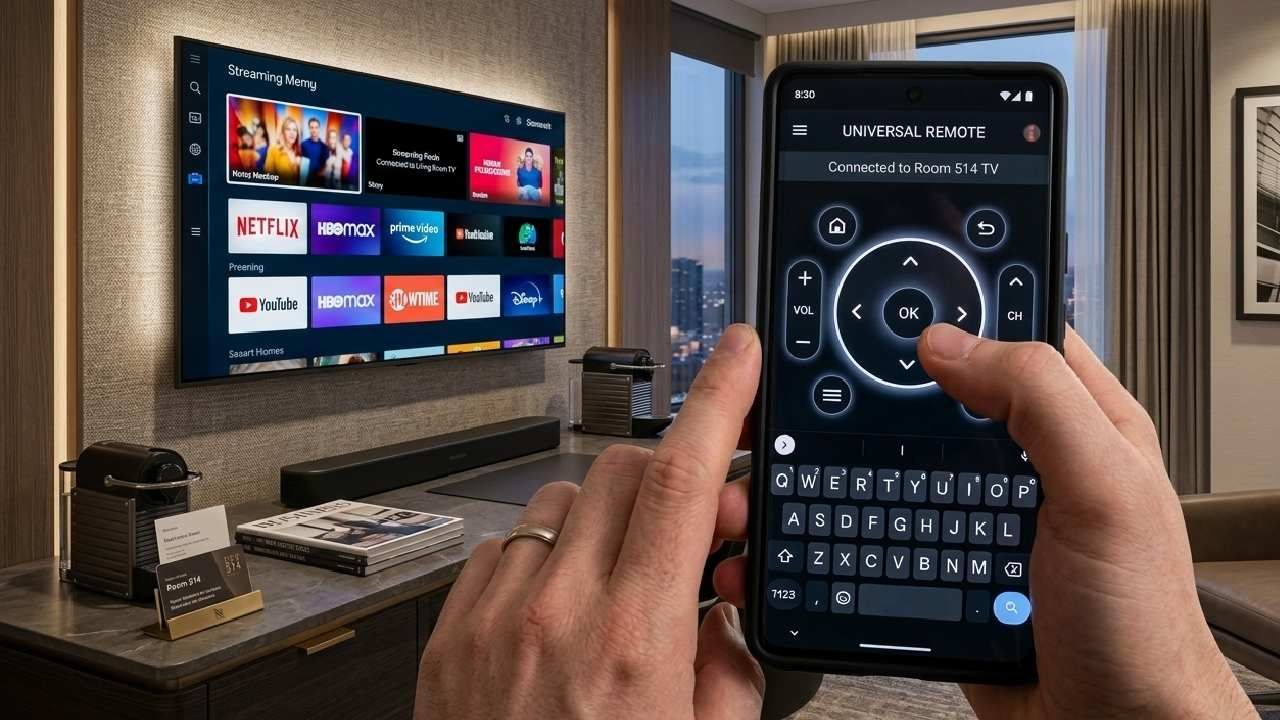
Tired of clicking through dozens of screens just to search for a movie or TV show on your smart TV? Many users struggle with slow navigation and frustrating on-screen keyboards that require selecting one character at a time. That’s where the Universal TV Remote Control app becomes a powerful solution.
Two of its most helpful features are the D-Pad (Directional Pad) and the keyboard. These tools let you navigate menus quickly and type text effortlessly on your smartphone. Instead of slowly moving through TV menus, you can control everything from your phone in seconds.
In this guide, you’ll learn how both features work, when to use them, and how they can significantly improve your smart TV experience. Let’s break down how to use these powerful features effectively.
What is the D-Pad & Why You Need It?
The D-Pad (Directional Pad) is a navigation control used to move through menus on your TV. The layout mimics the design of most traditional TV remotes, making it familiar and easy to use.
What Makes It Useful?
- The D-Pad provides a fast and precise way to navigate smart TV interfaces.
- Faster Navigation: Move through menus and settings quickly.
- Smooth Scrolling: Browse streaming apps, channels, and lists efficiently.
- Precision Control: Perfect for interfaces that rely on directional movement.
This feature works especially well with smart TV platforms that rely heavily on directional navigation.
Common Use Cases
- You’ll likely use the D-Pad in situations such as:
- Navigating smart TV home screens
- Browsing streaming apps like Netflix or YouTube
- Scrolling through channels
- Adjusting TV settings
- Moving through content recommendations
In short, the D-Pad acts as the primary navigation tool for your TV interface.
How to Use the D-Pad in Universal TV Remote Control App?
You can use the D-Pad in Universal TV Remote Control App by opening the app, connecting your TV, and pressing D-Pad to move throughmenus and apps.
Accessing the D-Pad
- Open the Universal TV Remote Control app on your phone.
- Select your connected TV device from the list.
- Once the remote interface loads, look at the main control screen.
- The D-Pad usually appears in the center of the remote's layout.
This control panel becomes your primary navigation tool.
Troubleshooting D-Pad Issues
If the D-Pad isn’t working properly, try these solutions:
- Check your WiFi connection if using a wireless connection.
- Ensure your phone and TV are connected to the same network.
- If using IR mode, move closer to the TV.
- Restart the app and reconnect your TV if navigation becomes unresponsive.
Most issues are easily fixed by reconnecting the device.
What is the Keyboard & Why You Need It?
The keyboard feature in the Universal TV Remote Control app lets you type directly on your TV using your smartphone's keyboard.
Instead of navigating the TV’s on-screen keyboard letter by letter, you can simply type normally on your phone.
Why the Keyboard Feature Matters?
Typing on a TV using a traditional remote can be slow and frustrating. The keyboard feature solves this problem.
Key advantages include:
- Faster searches: Quickly type movie or show names.
- Easy login: Enter usernames and passwords without frustration.
- Smart input: Use your phone’s predictive text and autocorrect.
- Better usability: Avoid selecting each letter individually on the TV screen.
When You’ll Use It Most
You’ll frequently use the keyboard for:
- Searching for movies or TV shows
- Logging into streaming apps
- Entering WiFi passwords
- Searching content on YouTube
- Using smart TV search functions
For any situation that requires typing, the keyboard becomes extremely helpful.
How to Use the Keyboard in the Universal TV Remote Control App?
Once TV is connected, simply look for keyboard icon on the app screen. Click on it and start using,
Accessing the Keyboard
To open the keyboard:
- Launch the Universal TV Remote Control app.
- Select your connected TV.
- Look for the keyboard icon, usually located near the bottom of the screen.
- Tap the icon to open your phone’s virtual keyboard.
Troubleshooting Keyboard Issues
If the keyboard doesn’t work properly:
- Ensure your TV and phone are properly connected.
- Reconnect the TV inside the app.
- Check your phone’s keyboard language settings.
- Improve the WiFi signal strength if text input feels delayed.
These simple fixes usually resolve keyboard problems.
Advanced Tips & Tricks
You can significantly improve your TV experience by combining both controls.
For example:
- Use the D-Pad to move to the search bar in an app.
- Switch to the keyboard to type the movie name instantly.
Different smart TV brands may behave slightly differently, including Samsung, LG, Android TV, Roku, and Fire TV systems. Spending a few minutes exploring both features on your TV can help you understand how navigation works best.
Additionally, the keyboard feature can be extremely useful for accessibility, helping users who may find traditional remote typing difficult.
Conclusion
The D-Pad and keyboard features in the Universal TV Remote Control app are powerful tools that many users overlook. When used together, they make navigating your smart TV faster, smoother, and far more convenient.
The D-Pad helps you move through menus quickly, while the keyboard allows you to type searches, passwords, and text effortlessly from your phone.
Try these features today and notice how much faster your TV experience becomes. Explore the full potential of the Universal TV Remote Control app and take control of your entertainment.
After all, the best remote is the one already in your pocket, your smartphone.
Download Universal TV Remote Control Today
Available on:
- Google Play Store: Download for Android
- Apple App Store: Download for iOS
FAQs
Q: Do I need a subscription to use the D-Pad and keyboard?
A: No! Both features are available in the free version of Universal TV Remote Control. No premium subscription needed for these core features.
Q: What's the difference between the free and ad-free versions?
A: Universal TV Remote Control offers:
Free version: Full functionality with occasional ads
Ad-free version: Same functionality without ads
Both versions include D-Pad, keyboard, voice control, and all other features. Choose based on your preference for ads vs. an ad-free experience.
Q: Are there hidden features I'm missing?
A: Yes! Universal TV Remote Control often includes:
Voice control: Try the voice button
Trackpad mode: Swipe across your phone screen to move the cursor
Custom layouts: Some brands support custom button layouts
Game mode: Some TVs have gaming features accessible through the app
Explore your app's settings to discover all available features.
Q: Why does my TV appear as offline?
A: Your TV goes offline when:
WiFi disconnects
Your TV is turned off
TV enters sleep mode
WiFi password changed
App loses connection