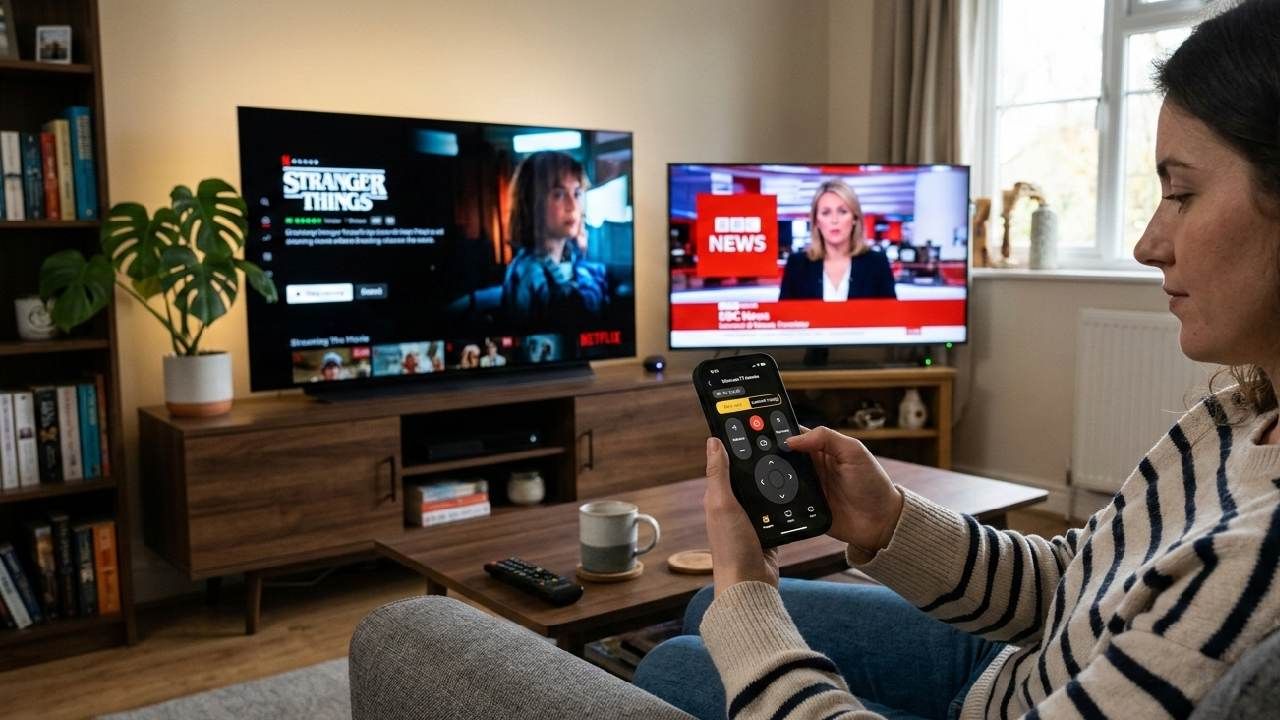
You have two Samsung TVs, one in the living room and the second in the bedroom. You download a remote app, set it up on one TV, try to add the second one… and suddenly it either replaces the first or both TVs start responding together. Frustrating, right?
This is one of the most common problems in homes with multiple TVs from the same brand. The good news? It’s completely fixable. With the right setup, you can control each TV independently from your phone, and this guide shows you exactly how to do it, step by step.
Why Does One Remote Control Both TVs of the Same Brand?
Before fixing the issue, it helps to understand why it happens.
IR Signal Overlap:
Traditional remotes use infrared (IR), which sends signals in all directions. If you have two TVs from the same brand, they often use identical IR codes. That means when you press a button, both TVs receive and act on the same command. This isn’t a bug, it’s how IR technology works.
Wi-Fi App Confusion:
Some remote apps don’t properly distinguish between devices. Instead of identifying TVs by their unique network identity, they just look for “Samsung TV” or “LG TV.” As a result, the app connects to whichever TV responds first or both.
Why this doesn’t happen with better apps:
Modern Wi-Fi-based remote apps connect using each TV’s unique IP address. That means every TV is treated as a separate device, even if they’re the same brand.
Tip: This is why a phone-based Wi-Fi remote app solves what physical remotes cannot, each TV has a unique IP address, so your phone talks to them individually.
What You Need Before Setting Up
Before you start, make sure everything is ready:
✅ Both TVs connected to the same Wi-Fi network
✅ Remote app installed on your phone
✅ Both TVs turned ON during setup
✅ Router AP Isolation turned OFF (this setting prevents devices on the same network from seeing each other)
✅ Each TV has a unique name or IP (usually automatic on modern Smart TVs)
Read Also: IR Blaster vs WiFi TV Remote App - Which One Do You Actually Need?
Step-by-Step: How to Add and Control Two Same-Brand TVs in the App
Step 1 — Add Your First TV
- Open your remote app
- Tap “Add New Remote” or select your TV brand
- Let the app scan your Wi-Fi network
- Select your TV from the list (you’ll see its name or IP)
- Confirm the connection (a PIN may appear on your TV)
Rename it immediately (e.g., Living Room Samsung)
Step 2 — Add Your Second TV
Go back to the home screen
- Tap “Add Another Remote” or the “+” icon
- Let the app scan again
- Select the second TV (it will appear separately with a different IP)
- Confirm the connection
- Rename it (e.g., Bedroom Samsung)
Now you’ll have two separate remote profiles.
Step 3 — Switch Between TVs Instantly
Open the app home screen
- You’ll see both TVs listed
- Tap the one you want to control
- The app connects only to that TV
No interference. No confusion. You can switch between TVs in seconds.
Tip: The app connects using each TV’s unique IP address, not the brand name. So even identical TVs are treated as completely separate devices.
Works for All Major Same-Brand Combinations
This method works across almost all TV brands:
Two Samsung TVs:
Both are detected separately via Wi-Fi, even if they run the same OS. Each gets its own connection.
Two LG TVs:
Each TV has a unique network identity, so control stays independent without overlap.
Two Hisense TVs:
Whether using VIDAA or Android TV, both devices appear separately and work smoothly.
Two TCL / Roku TVs:
Each TV gets its own session, allowing quick switching without interference.
Two Non-Smart TVs (IR):
IR works differently, you must point your phone directly at the TV you want. Direction and distance determine which TV responds.
What If Both TVs Still Respond at the Same Time?
If you’re still facing issues, here’s how to fix them:
Check your router settings:
Make sure devices can communicate. Disable isolation features and ensure each TV gets a unique IP.
Rename your TVs:
Go into TV settings and assign clear names like Living Room TV and Bedroom TV. This makes selection easier inside the app.
For IR TVs:
- IR signals are broadcast-based.
- Point your phone directly at one TV
- Keep the other out of line of sight
- Or temporarily cover the second TV’s IR sensor
Restart everything:
Sometimes routers reassign IPs incorrectly. Restart both TVs and reconnect them in the app to resolve conflicts.
Conclusion
Controlling two TVs of the same brand isn’t impossible, it just requires the right approach. The problem comes from shared IR signals or apps that don’t distinguish devices properly. Once you use a Wi-Fi-based setup that connects via unique IP addresses, each TV becomes fully independent.
That means no more accidental channel changes in the other room.
Download the Universal TV Remote Control app and take full control of every TV in your home separately, smoothly, and instantly.
Frequently Asked Questions
Q1: Can one remote app control two TVs of the same brand at the same time?
Yes, but as separate profiles. Each TV is identified by its unique IP address, so commands go only to the selected device.
Q2: What if both TVs have the same name?
Rename them in the TV settings (e.g., Living Room and Bedroom). This helps the app list them clearly.
Q3: Does this work for non-smart TVs?
Yes, but only with IR. You’ll need to point your phone directly at the TV you want to control.