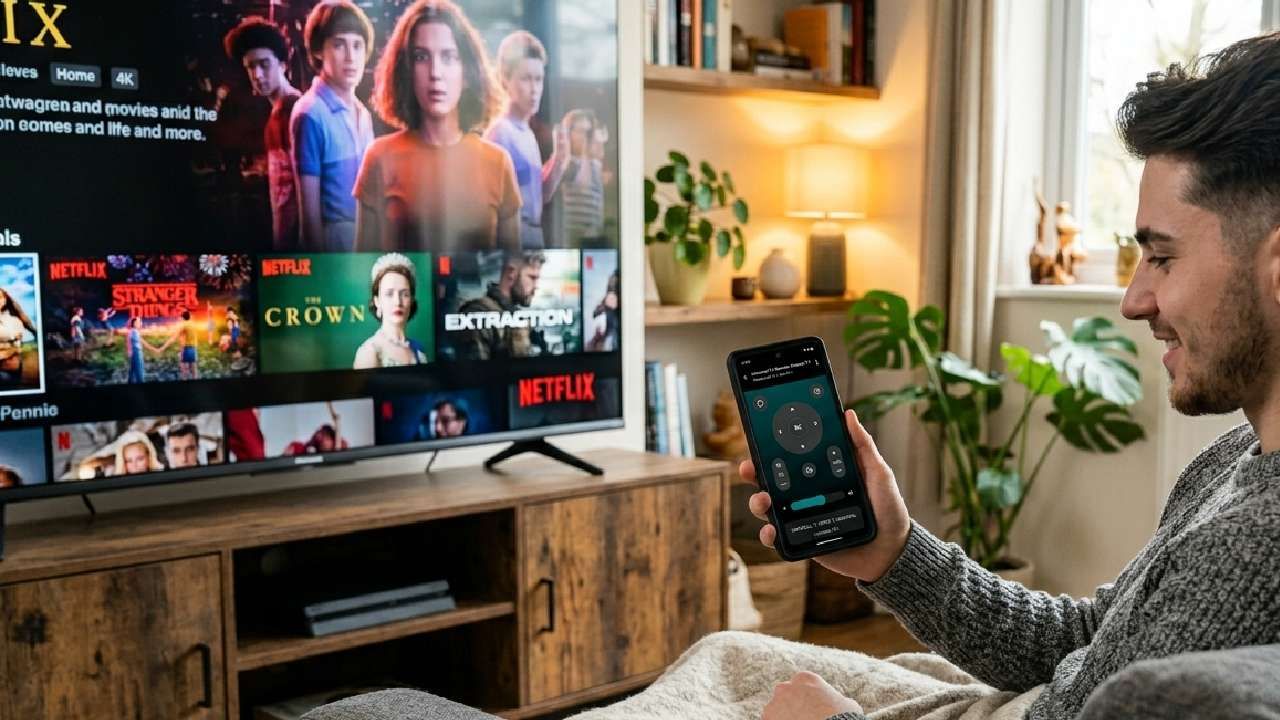
If your Hisense TV remote app connects but stops working after a few seconds, the issue is usually caused by battery optimization, unstable WiFi, or TV power-saving settings interrupting the connection. This is a common problem, and you can fix it with a few targeted steps.
Many users experience the app connecting successfully, working briefly, then suddenly disconnecting or becoming unresponsive. This guide explains the exact reasons behind this issue and how to fix it permanently.
Why Your Hisense TV Remote App Disconnects After a Few Seconds
Battery Optimization Killing the App
Most smartphones automatically restrict background apps to save battery. When this happens, your remote app loses connection within seconds because the system limits its activity.
WiFi Network Instability or Router Settings
Even if both devices are connected to the same network, signal instability or router settings can disrupt communication. Features like AP isolation prevent devices from interacting with each other.
Hisense TV Sleep or Power Saving Mode
Hisense TVs reduce background activity when idle to save power. This can interrupt the connection between your TV and the remote app.
Background App Restrictions on Android or iPhone
Modern smartphones limit background processes. If your remote app is restricted, it will disconnect quickly even after a successful connection.
Software Glitch in TV or Remote App
Temporary bugs or outdated software versions can also cause random disconnections and unstable performance.
Quick Fixes to Stop Hisense Remote App from Disconnecting
Disable Battery Optimization for Remote Apps
Go to your phone settings and turn off battery optimization for your remote app. This allows it to run continuously in the background without interruption.
Ensure Both Devices Are on the Same Stable WiFi
Make sure your phone and Hisense TV are connected to the same WiFi network. Avoid switching between different bands, such as 2.4 GHz and 5 GHz, during use.
Restart Your Hisense TV Properly
Turn off your TV, unplug it for at least 30 seconds, then turn it back on. This clears temporary system glitches.
Reset Network Settings on TV
Open your TV settings, reset the network, and reconnect to your WiFi. This helps fix hidden connection issues.
Update TV Software and Remote App
Always keep your TV firmware and remote app updated to avoid compatibility problems.
Advanced Fixes If the Problem Still Continues
Disable AP Isolation in the Router
Log in to your router settings and turn off AP isolation. This feature can block communication between your phone and TV.
Assign a Static IP to Your Hisense TV
Assigning a fixed IP address helps maintain a stable connection and prevents random disconnections.
Turn Off VPN or Firewall on Phone
VPNs and security apps may block local network communication. Disable them temporarily and test the connection again.
Control Hisense TV Without Disconnection Issues
If you are tired of repeated disconnections, switching to a more stable remote solution is the easiest fix.
The Universal TV Remote Control app by Codematics is designed to provide a stable, reliable connection to smart TVs, including Hisense models. It works smoothly even when other apps fail to maintain a connection.
- Key benefits include:
- Fast and stable pairing
- Smooth navigation without lag
- Compatibility with multiple TV brands
- Simple and easy-to-use interface
Using a reliable remote app can save time and eliminate the frustration caused by constant disconnections.
Hisense VIDAA vs Android TV – Why This Issue Happens More Often
Hisense TVs operate on two main platforms: VIDAA and Android TV.
VIDAA TVs often have stricter network permissions and limited compatibility with third-party apps. This increases the chances of connection issues.
Android TVs are more flexible but can still experience disconnect issues due to system-level battery restrictions and network management.
Understanding your TV’s operating system helps you apply the right solution more effectively.
Pro Tips to Prevent Remote App Disconnections
Keep your TV active and avoid letting it go into sleep mode frequently. Use a stable WiFi connection for better performance. Disable aggressive battery-saving settings on your phone. Close unnecessary background apps. Keep your TV software and mobile apps updated.
Conclusion
Hisense TV remote apps disconnecting after a few seconds is a common issue caused by battery restrictions, unstable networks, or power-saving settings. By applying the fixes in this guide, you can restore a stable connection.
If the problem persists, using a reliable alternative like the Universal TV Remote Control app can provide a consistent, hassle-free experience.
FAQs
Q. Why does my Hisense remote app keep connecting and then disconnecting?
A: This usually happens due to battery optimization, unstable WiFi, or background app restrictions on your phone.
Q. How do I keep my remote app connected permanently?
A: Disable battery optimization, keep both devices on the same network, and prevent your TV from entering sleep mode.
Q. Does WiFi speed affect remote app performance?
A: Yes, slow or unstable WiFi can cause delays and frequent disconnections.
Q. Why is this issue more common on VIDAA TVs?
A: VIDAA OS has stricter network controls, which can limit communication between your phone and TV.
Q. What should I do if nothing works?
A: Use a more reliable remote solution, such as the Universal TV Remote Control app, to maintain a consistent connection.