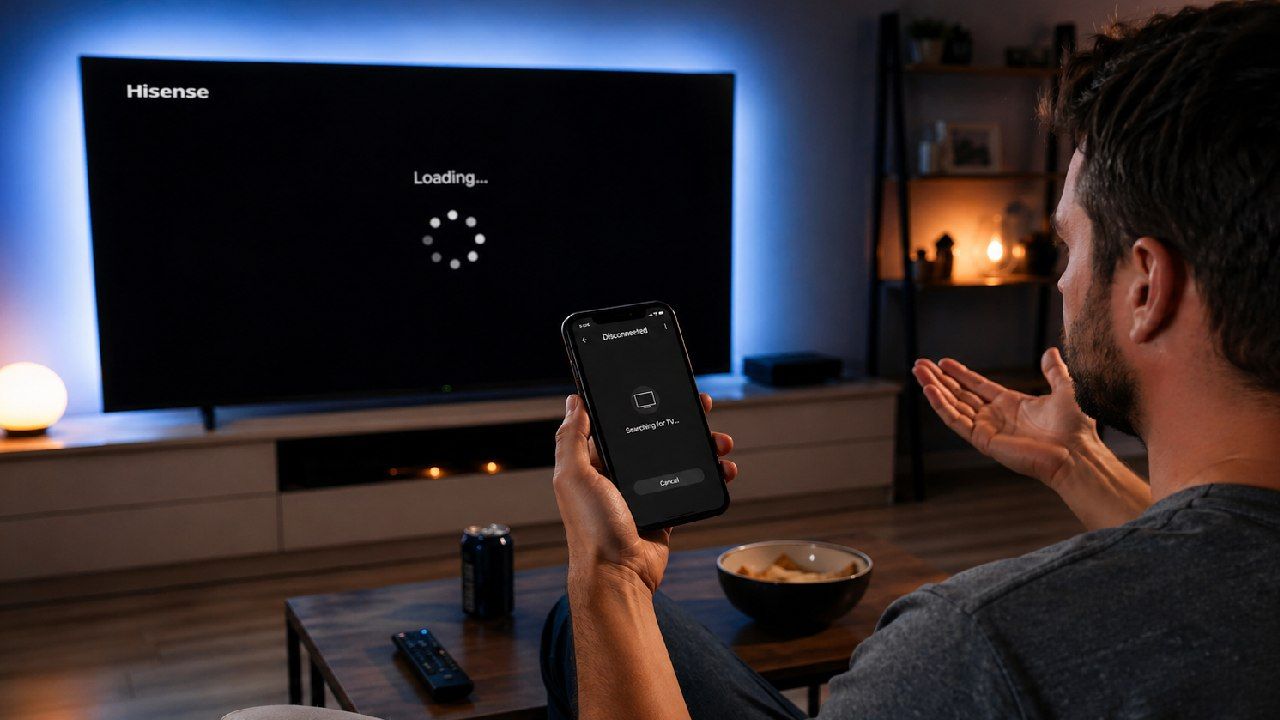
You downloaded one app, waited for it to connect, and nothing happened. So you tried another. Same result. Now you’re wondering if your TV is the problem. It isn’t. You’re not doing anything wrong.
The issue is simpler and more frustrating than that. Most Hisense remote apps only work with one type of system. If your TV runs VIDAA, a Roku app won’t connect. If it runs Google TV, a VIDAA-only app won’t even see it.
Why Most Hisense Remote Apps Fail on Certain Models
Here’s what almost no app description makes clear. Hisense doesn’t run a single operating system across all its TVs. It uses multiple platforms depending on the model, region, and year. That includes VIDAA, Google TV, Android TV, Roku TV, and Fire TV in newer models like U6N 2025 and XClass.
Each of these platforms communicates differently. An app designed for VIDAA uses a completely different protocol than one built for Roku TV. They are not interchangeable. They literally speak different languages to your TV. That’s why an app can have great reviews and still fail instantly on your device.
Then there’s the third-party app problem. Many of them are packed with aggressive ads that interrupt every few seconds. Some push forced upgrades before basic features even work. Others raise privacy concerns based on user reviews mentioning unusual permissions or background activity. Even when they connect, the experience is unreliable. Pairing drops, buttons lag, and features feel incomplete.
This isn’t user error. It’s a compatibility gap.
Read Also: Hisense TV Remote App Stops Working After a Few Seconds – Why & Fix
First: Figure Out Which Hisense OS Your TV Is Running
Before you install anything else, identify your TV’s platform. This takes less than a minute and saves hours of frustration.
- Look at your home screen: Roku TV shows a grid of colorful tiles. VIDAA has a clean horizontal app bar. Google TV shows a “For You” tab with content recommendations. Fire TV includes Alexa integration and a distinct content-first layout.
- Check your settings: Go to Settings> System> About. The OS is listed there on all models.
- Use your model number U6N 2025 models run Fire TV. U7N and U8N typically use Google TV. Most budget H-series models use VIDAA.
Once you know this, the connection issues start making sense.
The App That Actually Works on All Hisense TV Models: Universal TV Remote Control
There is one app that avoids all of these compatibility issues by design. Universal TV Remote Control works across every Hisense platform because it doesn’t rely on a single connection method.
Why It Works Where Other Apps Don't
Most apps only support WiFi. That works for smart TVs but fails completely on older models. Universal TV Remote Control supports both WiFi and IR.
WiFi handles modern smart TVs, including VIDAA, Google TV, Android TV, Roku TV, and Fire TV. IR covers older non-smart Hisense TVs that don’t connect to the internet. No pairing needed. Just point and control.
This dual approach is what makes it reliable. It adapts to your TV instead of expecting your TV to match the app.
What You Can Control
Once connected, the experience feels like a full remote rather than a limited replacement. You can adjust the volume, change channels, switch inputs, and navigate menus using a responsive D-pad. There’s a built-in keyboard for typing passwords or searching apps, which is far faster than using a traditional remote. You can launch apps directly and manage multiple TVs from the same phone.
Voice control is available on supported devices, making navigation even quicker. Many users end up using it more than the original remote. One user, Corine Raymond, put it simply: “I use it more than the actual remote the TV came with.”
How to Set It Up in Under 2 Minutes
- Download Universal TV Remote Control from the Play Store or App Store
- Connect your phone and Hisense TV to the same WiFi network
- Open the app and select Hisense from the list
- Enter the PIN shown on your TV screen for WiFi, or point your phone at the IR
Most users are fully connected in under 90 seconds.
With over 130 million downloads, support for 700-plus TV brands, and users in more than 100 countries, it’s built for real-world compatibility, not just one ecosystem.
What Hisense TV Owners Are Saying
“I tried three different apps before this. None of them connected. This one worked instantly with my VIDAA TV.”
“My Hisense model is pretty old and I thought no app would support it. The IR feature worked right away.”
“Setup took less than a minute. No signups, no confusion, just connected and worked.”
Trusted by over 125 million users worldwide, the app has already solved this problem at scale. If it worked for them, it will work for your Hisense TV too.
Stop Searching, Start Controlling Your Hisense TV Right Now
You’ve already spent enough time trying apps that don’t work. This one does. It supports every Hisense model, works on both Android and iPhone, and gets you connected in minutes. Download Universal TV Remote Control and take back control of your TV.
Play Store Download Link: https://play.google.com/store/apps/details?id=codematics.universal.tv.remote.control
App Store Download Link: https://apps.apple.com/us/app/universal-tv-remote-control/id1492122256
FAQs
Q. Which app works with all Hisense TV models, including VIDAA, Roku, and Google TV?
A: Universal TV Remote Control by Codematics supports VIDAA, Roku TV, Google TV, Android TV, and Fire TV using WiFi. It also works with older Hisense TVs through IR without needing internet.
Q. Why did the Hisense remote app I downloaded not connect to my TV?
A: Most apps only support one operating system. If your TV runs a different platform, the app cannot communicate with it. Universal TV Remote Control detects and connects using the correct method.
Q. Does Universal TV Remote Control work on both Android and iPhone?
A: Yes, it is available on both the Google Play Store and Apple App Store. The features and compatibility are the same across both platforms.
Q. Can I use a phone remote app on my Hisense TV without WiFi?
A: Yes, if your phone has an IR blaster. Universal TV Remote Control supports IR mode, allowing control without WiFi or an internet connection.
Q. Is the Universal TV Remote Control free to use for Hisense TVs?
A: Yes, the core features like power, volume, channels, and navigation are free. No subscription is required to control your TV.